Nova8K Installation Guide: Get Running In Minutes
This Nova8K Installation Guide walks you through setting up Nova8K on Firestick, Android TV, Android phones and Smart TVs in just a few minutes. New here? Visit our homepage, or head straight to Buy IPTV UK Subscription to get started — Firestick users can also check our Best IPTV for Firestick UK guide.
Pick your device below and follow the steps in this Nova8K Installation Guide. No technical experience needed — most people are streaming inside five minutes.
Amazon Firestick
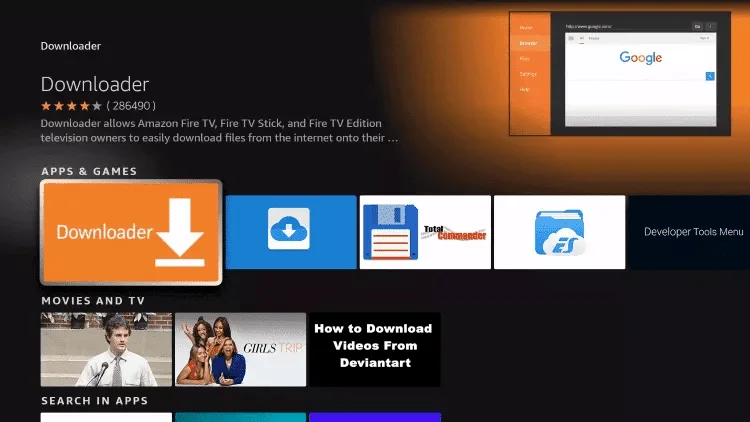
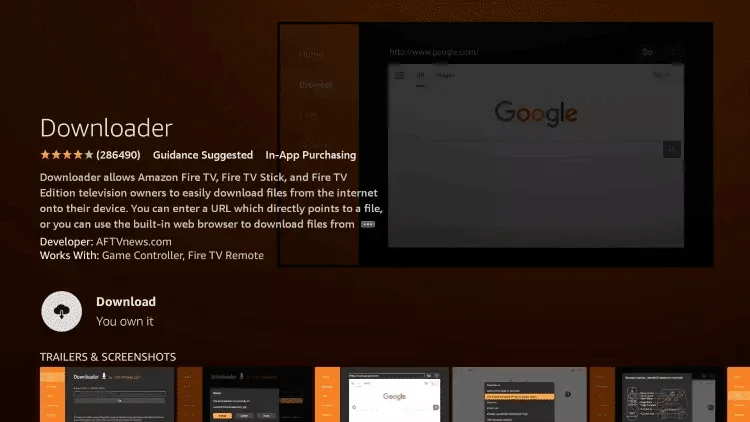
Sideload the Nova8K app using the free Downloader tool from the Amazon Appstore.
4311460
Installation Steps
-
1
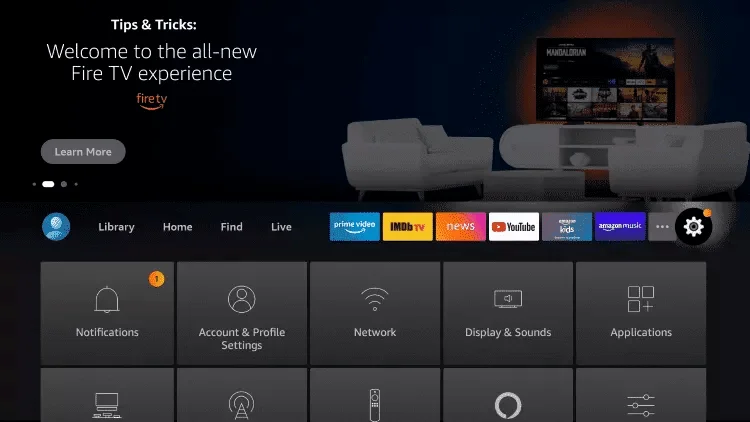
Open Settings
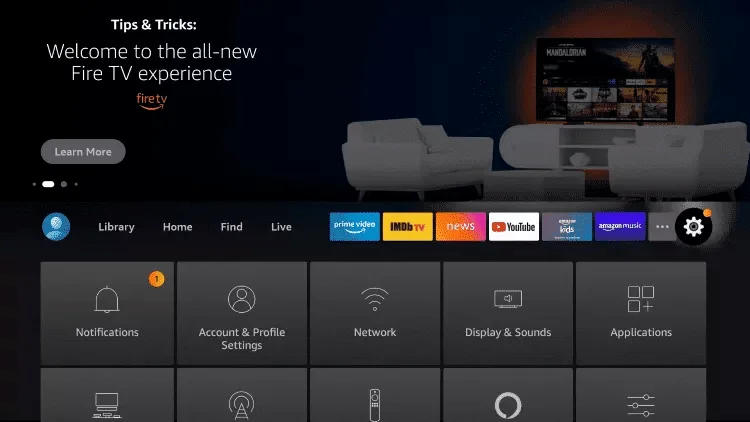
From the Fire TV home screen, scroll along to the top and select Settings.

-
2
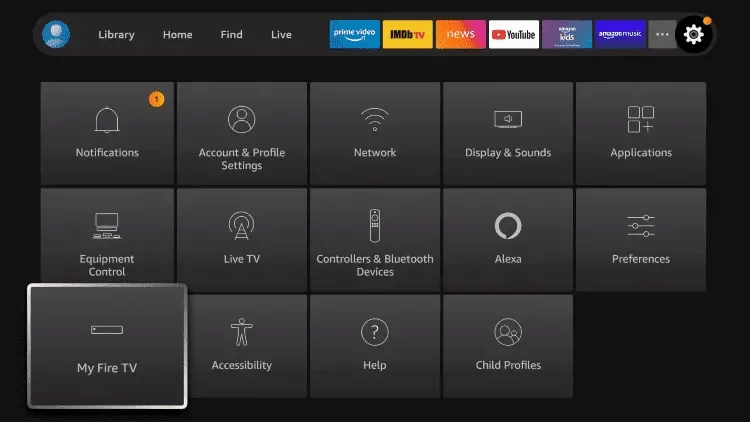
Select My Fire TV
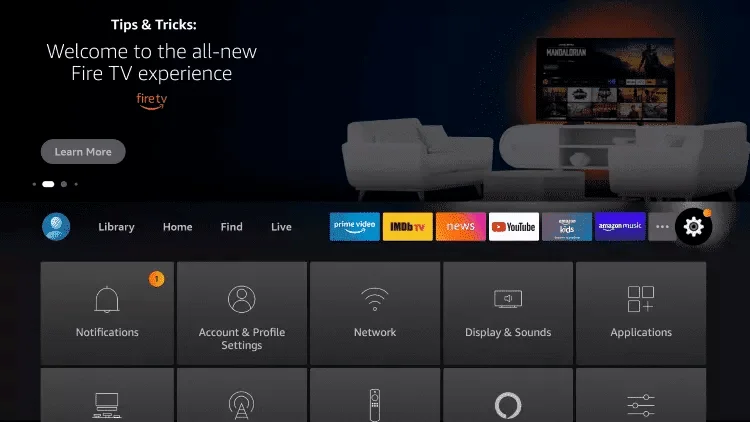
Inside Settings, scroll across and choose My Fire TV.
-
3
Open Developer Options
Within My Fire TV, select Developer Options from the list.
-
4
Can't see Developer Options?
If it isn't showing, open About instead, select your Fire TV device, then press the OK button on your remote seven times until a message confirms developer mode has been switched on.
-
5
Open Install Unknown Apps
Back in Developer Options, select Install Unknown Apps to see the list of apps allowed to install software from outside the Appstore.
-
6
Enable Downloader
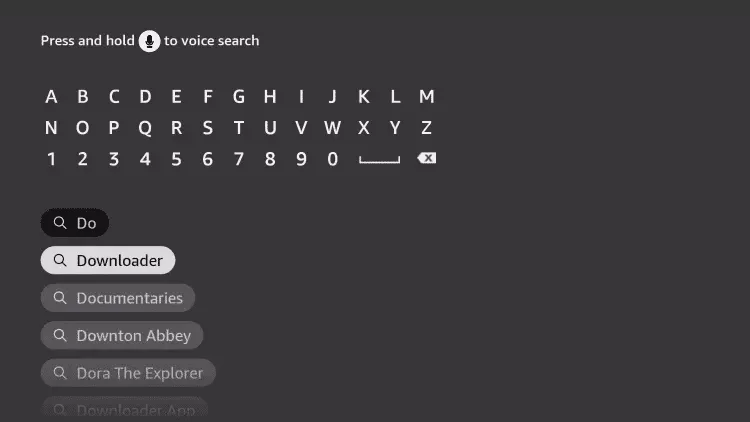
Find Downloader in the list and switch it on. If Downloader isn't listed yet, install it first using the download card above, then return to this screen.
-
7
Return to the Home screen
Press the Home button on your remote to go back to the main Fire TV screen.
-
8
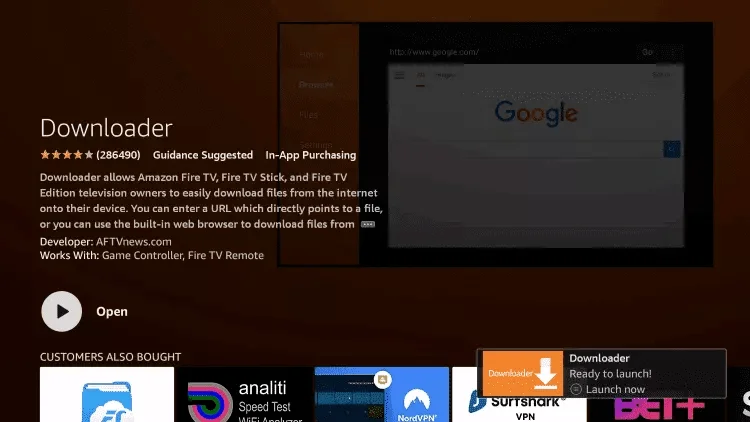
Launch Downloader
Scroll to your apps row and open Downloader.
-
9
Allow the required permissions
The first time you open Downloader, accept any permission prompts it shows so it can access storage on your device.
-
10
Close the Quick Start Guide
Downloader may show a short welcome guide — select the X in the corner to close it and reach the main screen.
-
11
Enter the Downloader code
Tap the address bar and enter our Downloader code, 4311460 (or paste the full link from the card above).
-
12
Press Go
Select Go on the on-screen keyboard to begin fetching the file.
-
13
Wait for the Nova8K app to download
Downloader will fetch the Nova8K app automatically — leave it running until the progress bar finishes.
-
14
Tap Install
Once the download completes, select Install and wait a few seconds while it sets up on your device.
-
15
Open the Nova8K app
When installation finishes, select Open to launch Nova8K for the first time.
-
16
Tap Add Playlist
On the Nova8K welcome screen, select Add Playlist to connect your subscription.
-
17
Tap Add Playlist
Open the Nova8K app and tap Add Playlist.
-
18
Enter your Username and Password
Enter the Username and Password you received after subscribing.
-
19
Tap Add Playlist
Tap Add Playlist to save your login details.
-
20
Select Nova8K
Select Nova8K from the available playlists.
-
21
Tap Connect
Tap Connect. Once connected, your live TV channels, movies, and series will load automatically.
Troubleshooting Tips
Can't find Downloader in the Appstore? Make sure your Fire TV's region is set to a supported store, or search for "AFTV Downloader" instead.
Download stuck or fails? Double-check your Wi-Fi connection and re-enter the code carefully — a single wrong digit will point to nothing.
"Install blocked" message? Go to Settings → My Fire TV → Developer Options → Install Unknown Apps and turn it on for Downloader.
Frequently Asked Questions
Yes, Downloader is installed through the Amazon Appstore, which requires you to be signed in to your Fire TV with an Amazon account.
Yes. The same steps apply to any Fire TV Stick, Fire TV Cube, or Fire TV Edition smart TV.
Download codes occasionally refresh. If yours stops working, message our support team on WhatsApp and we'll send you the current one. We keep this Nova8K Installation Guide updated with the latest codes.
Android Phone & Android TV
Install the Nova8K APK directly on your Android phone, tablet, or Android TV box.
Installation Steps
-
1
Download the APK
Tap the Download APK button above. Your browser will save the file to your Downloads folder.
-
2
Enable "Install Unknown Apps" if required
If your device blocks the install, go to Settings → Apps → Special access → Install unknown apps, select your browser or file manager, and switch it on.
-
3
Install the APK
Open the downloaded file from your notifications or Downloads folder and tap Install.
-
4
Open the app
Once installation finishes, tap Open to launch Nova8K.
-
5
Log in
Enter the username and password you received after subscribing to start watching.
Troubleshooting Tips
Google Play Protect flags the app? This is expected for apps installed outside the Play Store. Tap More details → Install anyway to continue.
"App not installed" error? Make sure you have enough free storage and remove any previous Nova8K install first, then try again.
Tapping the APK does nothing? Open your file manager app, navigate to the Downloads folder, and tap the file directly.
Frequently Asked Questions
Yes. The same APK installs on Android phones, tablets, and Android TV boxes — just download it directly on the device or transfer it over from another device.
Yes, our APK is hosted on a secure CDN and only ever needs the standard installation permission Android requests for any app installed outside the Play Store.
Nova8K checks for new versions on launch and will prompt you to download the latest APK when an update is available.
Need Help With This Nova8K Installation Guide?
Our support team is on hand if you get stuck on any step of this Nova8K Installation Guide, and new customers can try the service before committing.